> ## Documentation Index
> Fetch the complete documentation index at: https://docs-cbf.growthtak.com/llms.txt
> Use this file to discover all available pages before exploring further.
# Finding your way around
> The dashboard, navigation menu, and how the screen adapts to your role and device.
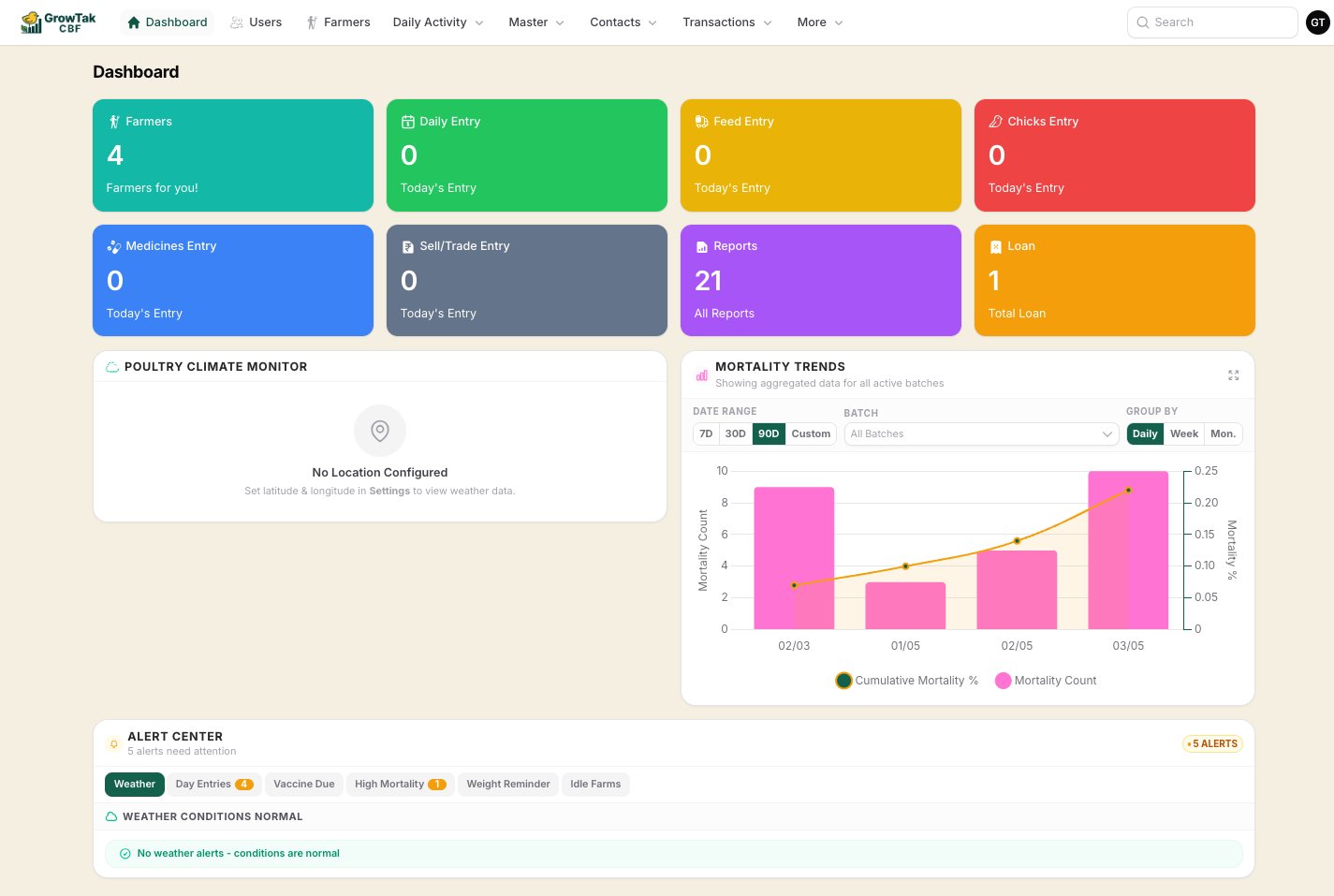
After you [sign in](/setup/logging-in), GrowTak opens on the **Dashboard**. The top bar holds the navigation menu, global search, and your user menu.
 ## The navigation menu
The menu groups every screen into a few areas. The exact items depend on your permissions and how your admin has customised the [menu](/setup/menu-builder).
| Group | What's inside |
| ------------------ | ------------------------------------------------------------------------ |
| **Dashboard** | Stat cards, charts, and the Alert Center. |
| **Daily Activity** | Day Entries and Medications — the everyday field work. |
| **Master** | Batch Programs, GC Schemes, Product Profiles, and Products. |
| **Contacts** | Farmers, Traders, and Suppliers. |
| **Transactions** | Bird, Feed, and Medicine purchases/sales, Lifting Intents, and Payments. |
| **More** | Activity Log, Farms Map, Reports, Batches, Roles, and Menu Builder. |
Use the **global search** box in the top bar to jump straight to a farmer or batch by name or mobile number.
## The dashboard at a glance
* **Stat cards** — quick counts: farmers, today's daily/feed/chick/medicine/sale entries, total reports, and outstanding loans. Each card is a shortcut to that area.
* **Poultry Climate Monitor** — local weather, once you set your company's latitude/longitude in [Company Settings](/setup/company-settings).
* **Mortality Trends** — aggregated mortality across active batches, with selectable date range (7/30/90 days or custom) and grouping (daily, weekly, monthly).
* **Alert Center** — tabs that surface batches needing attention: **Weather**, **Day Entries**, **Vaccine Due**, **High Mortality**, **Weight Reminder**, and **Idle Farms**. Supervisors see alerts only for their assigned batches.
## What changes with your role
GrowTak shows different things depending on who you are:
Sees every menu group and every batch. Can reach Company Settings, Users, Roles, and the Menu Builder, and can close/reopen batches and record payments.
Sees a focused menu for daily work. Day entries, medicines, transactions, and lifting are limited to **assigned batches** only. Closed batches are hidden unless permission is granted.
## On mobile
Supervisors usually work from a phone in the field. On small screens GrowTak automatically:
* Switches list screens from wide tables to stacked **cards** that are easy to read and tap.
* Shows field-friendly inputs such as the **location button** for GPS capture and the **weight scale** input for body-weight sampling.
The same login and the same data work on both desktop and mobile — only the layout adapts.
## Your user menu
Click your initials in the top-right corner to open the user menu. From here you can reach your [Profile](/setup/logging-in#your-profile), and — if you are an admin — [Company Settings](/setup/company-settings), before signing out.
## The navigation menu
The menu groups every screen into a few areas. The exact items depend on your permissions and how your admin has customised the [menu](/setup/menu-builder).
| Group | What's inside |
| ------------------ | ------------------------------------------------------------------------ |
| **Dashboard** | Stat cards, charts, and the Alert Center. |
| **Daily Activity** | Day Entries and Medications — the everyday field work. |
| **Master** | Batch Programs, GC Schemes, Product Profiles, and Products. |
| **Contacts** | Farmers, Traders, and Suppliers. |
| **Transactions** | Bird, Feed, and Medicine purchases/sales, Lifting Intents, and Payments. |
| **More** | Activity Log, Farms Map, Reports, Batches, Roles, and Menu Builder. |
Use the **global search** box in the top bar to jump straight to a farmer or batch by name or mobile number.
## The dashboard at a glance
* **Stat cards** — quick counts: farmers, today's daily/feed/chick/medicine/sale entries, total reports, and outstanding loans. Each card is a shortcut to that area.
* **Poultry Climate Monitor** — local weather, once you set your company's latitude/longitude in [Company Settings](/setup/company-settings).
* **Mortality Trends** — aggregated mortality across active batches, with selectable date range (7/30/90 days or custom) and grouping (daily, weekly, monthly).
* **Alert Center** — tabs that surface batches needing attention: **Weather**, **Day Entries**, **Vaccine Due**, **High Mortality**, **Weight Reminder**, and **Idle Farms**. Supervisors see alerts only for their assigned batches.
## What changes with your role
GrowTak shows different things depending on who you are:
Sees every menu group and every batch. Can reach Company Settings, Users, Roles, and the Menu Builder, and can close/reopen batches and record payments.
Sees a focused menu for daily work. Day entries, medicines, transactions, and lifting are limited to **assigned batches** only. Closed batches are hidden unless permission is granted.
## On mobile
Supervisors usually work from a phone in the field. On small screens GrowTak automatically:
* Switches list screens from wide tables to stacked **cards** that are easy to read and tap.
* Shows field-friendly inputs such as the **location button** for GPS capture and the **weight scale** input for body-weight sampling.
The same login and the same data work on both desktop and mobile — only the layout adapts.
## Your user menu
Click your initials in the top-right corner to open the user menu. From here you can reach your [Profile](/setup/logging-in#your-profile), and — if you are an admin — [Company Settings](/setup/company-settings), before signing out.