> ## Documentation Index
> Fetch the complete documentation index at: https://docs-cbf.growthtak.com/llms.txt
> Use this file to discover all available pages before exploring further.
# Calculating the GC
> Review and save the Grower Contract payment for a batch from the GC Calculation tab.
The **GC Calculation** tab on the batch dashboard needs the **Journal & GC** permission. It's normally an **admin** task at the end of a batch.
Once a batch's birds are sold, open it and go to the **GC Calculation** tab. GrowTak pulls together the batch's actual performance and costs, applies the batch's [GC scheme](/lifting-gc/gc-schemes), and shows the payment due to the farmer.
 ## What the tab shows
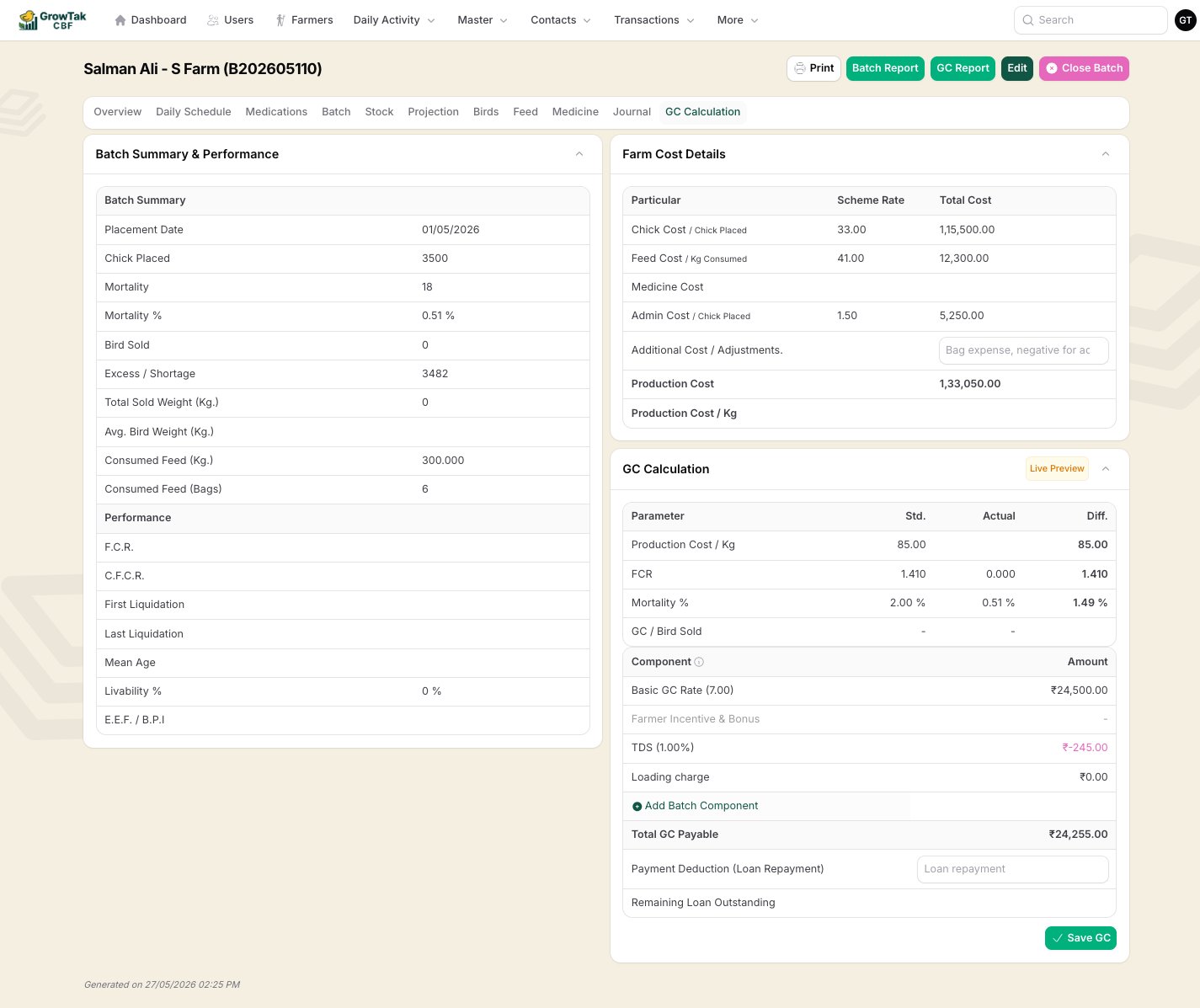
**Batch Summary & Performance** — the final figures for the flock: chicks placed, mortality and %, birds sold, total/average weight, consumed feed, FCR, CFCR, liquidation dates, mean age, and livability.
**Farm Cost Details** — the cost build-up: chick cost, feed cost, medicine cost, admin cost, optional additional adjustments, and the resulting **production cost** (total and per kg). Scheme rate and actual total are shown side by side.
**GC Calculation** — the worksheet itself:
* A **parameters** block comparing **Std.**, **Actual**, and **Diff.** for production cost/kg, FCR, mortality %, and GC/bird.
* A **component breakdown** — each line of the payment (base rate, incentives, bonus, TDS, loading charge, and any batch-specific components), with its amount.
* **Total GC Payable** — the bottom line.
* **Payment Deduction (Loan Repayment)** — optionally deduct an amount that the farmer owes; this records a repayment against their loan.
* **Remaining Loan Outstanding** — what's still owed after the deduction.
## Live preview (Advanced schemes)
For Advanced-mode schemes, a **Live Preview** recalculates the worksheet as data changes, so you can see the result before committing. You can also **Add Batch Component** — a one-off formula component that applies to *this batch only* (for an ad-hoc adjustment) without changing the shared scheme.
## Saving the GC
Check the performance, costs, and each component line.
If the farmer has an outstanding loan, enter the amount to recover in **Payment Deduction**.
Press **Save GC**. GrowTak stores the calculation against the batch, and — if you set a deduction — records a loan **repayment** automatically.
After saving, the batch's GC has a **paid status** of **Unpaid**. Recording the actual payment (or marking it paid from the [GC Paid report](/reports/gc-reports)) flips it to **Paid**. See [Payments & loans](/lifting-gc/payments).
## Changing a saved GC
You can **delete** a saved GC to recalculate — for example after correcting a transaction or day entry. Deleting it also reverses the loan repayment it created and re-opens the batch for GC editing.
GC figures depend on **complete, accurate data** — all bird sales recorded, day entries finalised, and feeder leftover entered. Finish data entry before saving the GC.
The GC at closing uses the **Final FCR** (based on total recorded feed), which can differ slightly from the **Running FCR** shown in the live reports during the cycle. This is expected — see [Key concepts](/introduction/key-concepts).
## What the tab shows
**Batch Summary & Performance** — the final figures for the flock: chicks placed, mortality and %, birds sold, total/average weight, consumed feed, FCR, CFCR, liquidation dates, mean age, and livability.
**Farm Cost Details** — the cost build-up: chick cost, feed cost, medicine cost, admin cost, optional additional adjustments, and the resulting **production cost** (total and per kg). Scheme rate and actual total are shown side by side.
**GC Calculation** — the worksheet itself:
* A **parameters** block comparing **Std.**, **Actual**, and **Diff.** for production cost/kg, FCR, mortality %, and GC/bird.
* A **component breakdown** — each line of the payment (base rate, incentives, bonus, TDS, loading charge, and any batch-specific components), with its amount.
* **Total GC Payable** — the bottom line.
* **Payment Deduction (Loan Repayment)** — optionally deduct an amount that the farmer owes; this records a repayment against their loan.
* **Remaining Loan Outstanding** — what's still owed after the deduction.
## Live preview (Advanced schemes)
For Advanced-mode schemes, a **Live Preview** recalculates the worksheet as data changes, so you can see the result before committing. You can also **Add Batch Component** — a one-off formula component that applies to *this batch only* (for an ad-hoc adjustment) without changing the shared scheme.
## Saving the GC
Check the performance, costs, and each component line.
If the farmer has an outstanding loan, enter the amount to recover in **Payment Deduction**.
Press **Save GC**. GrowTak stores the calculation against the batch, and — if you set a deduction — records a loan **repayment** automatically.
After saving, the batch's GC has a **paid status** of **Unpaid**. Recording the actual payment (or marking it paid from the [GC Paid report](/reports/gc-reports)) flips it to **Paid**. See [Payments & loans](/lifting-gc/payments).
## Changing a saved GC
You can **delete** a saved GC to recalculate — for example after correcting a transaction or day entry. Deleting it also reverses the loan repayment it created and re-opens the batch for GC editing.
GC figures depend on **complete, accurate data** — all bird sales recorded, day entries finalised, and feeder leftover entered. Finish data entry before saving the GC.
The GC at closing uses the **Final FCR** (based on total recorded feed), which can differ slightly from the **Running FCR** shown in the live reports during the cycle. This is expected — see [Key concepts](/introduction/key-concepts).