> ## Documentation Index
> Fetch the complete documentation index at: https://docs-cbf.growthtak.com/llms.txt
> Use this file to discover all available pages before exploring further.
# Signing in & your profile
> How to log in to GrowTak, what to do if your account won't open, and how to manage your profile.
## Signing in
Open your company's GrowTak address in a browser and you'll land on the sign-in screen.
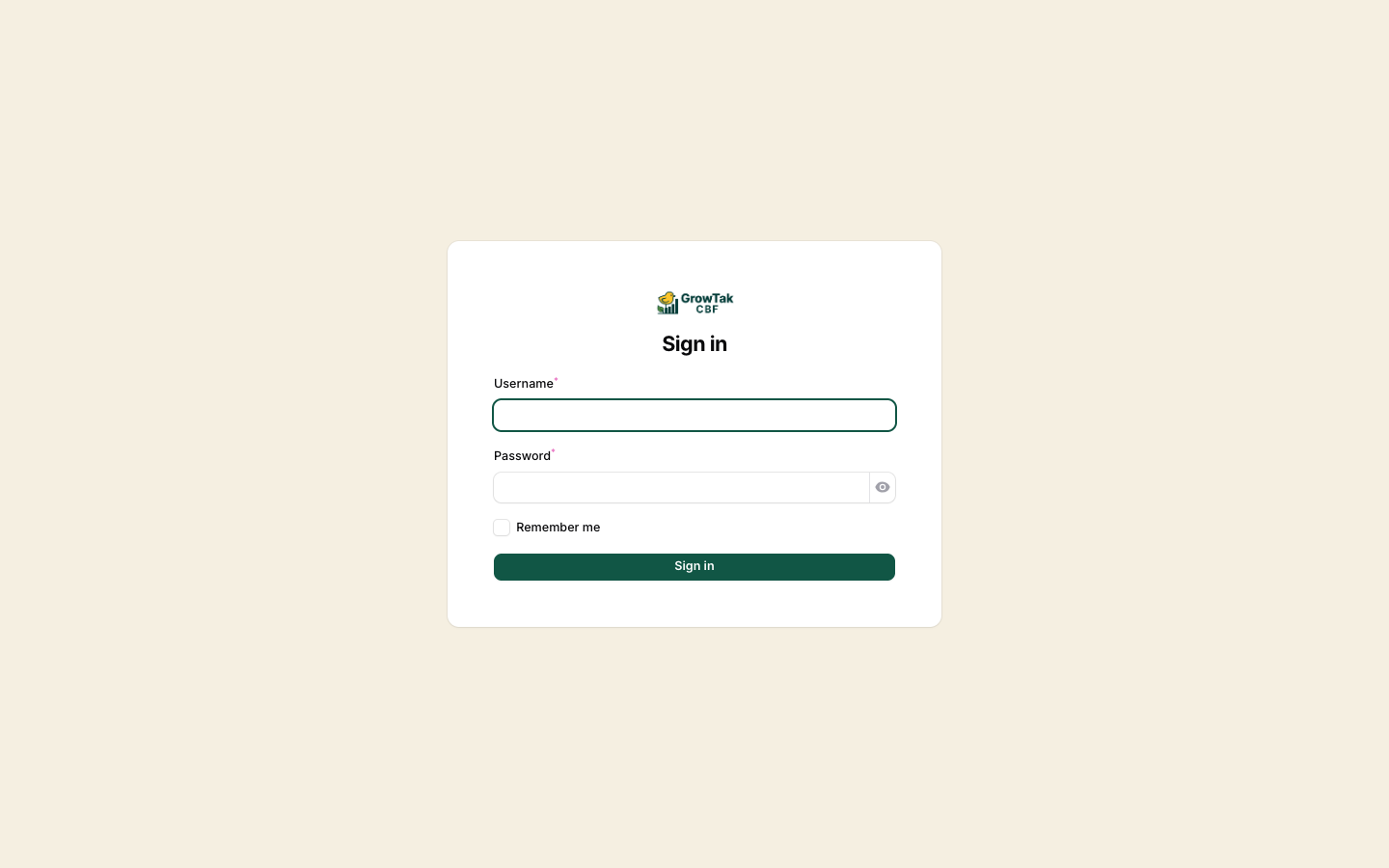 Your **username** is set by your admin when your account is created. It is often your mobile number, but it can be any short name.
Type your password. Use the **eye** icon to reveal it if you need to check what you typed.
Tick **Remember me** on your own device so you don't have to log in every time.
You'll arrive at the [Dashboard](/introduction/navigating).
### If you can't sign in
GrowTak will block access (even with the correct password) when:
* Your **account is inactive** — ask your admin to set your status back to *Active*.
* Your **company is inactive or its subscription has expired** — the admin needs to renew.
If your username or password is simply wrong, you'll see a sign-in error — try again, or ask your admin to reset your password.
There is no public self-registration. New users are always created by a company admin under [Users & roles](/setup/users-and-roles).
## Your profile
Open the **user menu** (your initials, top-right) and choose **Profile** to update your own details:
* **Name**
* **Email**
* **Username** — 3–20 characters, letters, numbers, and underscores only
* **Mobile** — exactly 10 digits
* **Password** — set a new password here whenever you wish
Keep your mobile number correct — it's commonly used as the login username and appears on WhatsApp/call shortcuts elsewhere in GrowTak.
## First-time company setup admin only
A brand-new company is created for you by GrowTak. When it's created, your company automatically comes with a sensible starting point so you can begin almost immediately:
* An **admin user** (you) with full permissions.
* **Default settings** and **menu**.
* A starter **bird profile**, **products** (chick + feed grades), **units**, and a **default batch program**.
* Two roles: **Admin** and **Supervisor**.
Your job from here is to review those defaults and adjust them to your operation — covered across the rest of this section.
Set your name, logo, contact details, and behaviour toggles. See [Company settings](/setup/company-settings).
Confirm your [products](/setup/products), [bird profile](/setup/product-profiles), and [batch program](/setup/batch-programs) match your breed and feeding plan.
Define how farmers are paid. See [GC schemes](/lifting-gc/gc-schemes).
Create supervisor accounts and assign them to batches. See [Users & roles](/setup/users-and-roles).
Your **username** is set by your admin when your account is created. It is often your mobile number, but it can be any short name.
Type your password. Use the **eye** icon to reveal it if you need to check what you typed.
Tick **Remember me** on your own device so you don't have to log in every time.
You'll arrive at the [Dashboard](/introduction/navigating).
### If you can't sign in
GrowTak will block access (even with the correct password) when:
* Your **account is inactive** — ask your admin to set your status back to *Active*.
* Your **company is inactive or its subscription has expired** — the admin needs to renew.
If your username or password is simply wrong, you'll see a sign-in error — try again, or ask your admin to reset your password.
There is no public self-registration. New users are always created by a company admin under [Users & roles](/setup/users-and-roles).
## Your profile
Open the **user menu** (your initials, top-right) and choose **Profile** to update your own details:
* **Name**
* **Email**
* **Username** — 3–20 characters, letters, numbers, and underscores only
* **Mobile** — exactly 10 digits
* **Password** — set a new password here whenever you wish
Keep your mobile number correct — it's commonly used as the login username and appears on WhatsApp/call shortcuts elsewhere in GrowTak.
## First-time company setup admin only
A brand-new company is created for you by GrowTak. When it's created, your company automatically comes with a sensible starting point so you can begin almost immediately:
* An **admin user** (you) with full permissions.
* **Default settings** and **menu**.
* A starter **bird profile**, **products** (chick + feed grades), **units**, and a **default batch program**.
* Two roles: **Admin** and **Supervisor**.
Your job from here is to review those defaults and adjust them to your operation — covered across the rest of this section.
Set your name, logo, contact details, and behaviour toggles. See [Company settings](/setup/company-settings).
Confirm your [products](/setup/products), [bird profile](/setup/product-profiles), and [batch program](/setup/batch-programs) match your breed and feeding plan.
Define how farmers are paid. See [GC schemes](/lifting-gc/gc-schemes).
Create supervisor accounts and assign them to batches. See [Users & roles](/setup/users-and-roles).