> ## Documentation Index
> Fetch the complete documentation index at: https://docs-cbf.growthtak.com/llms.txt
> Use this file to discover all available pages before exploring further.
# Users, roles & permissions
> Add your team, control what they can do, and assign supervisors to batches.
Managing users and roles is **admin only**.
GrowTak controls access with **roles**. Each user has one or more roles, and each role grants a set of permissions. Every company starts with two roles — **Admin** and **Supervisor** — and you can create more.
## Adding a user
Go to **Users** and select **New user**.
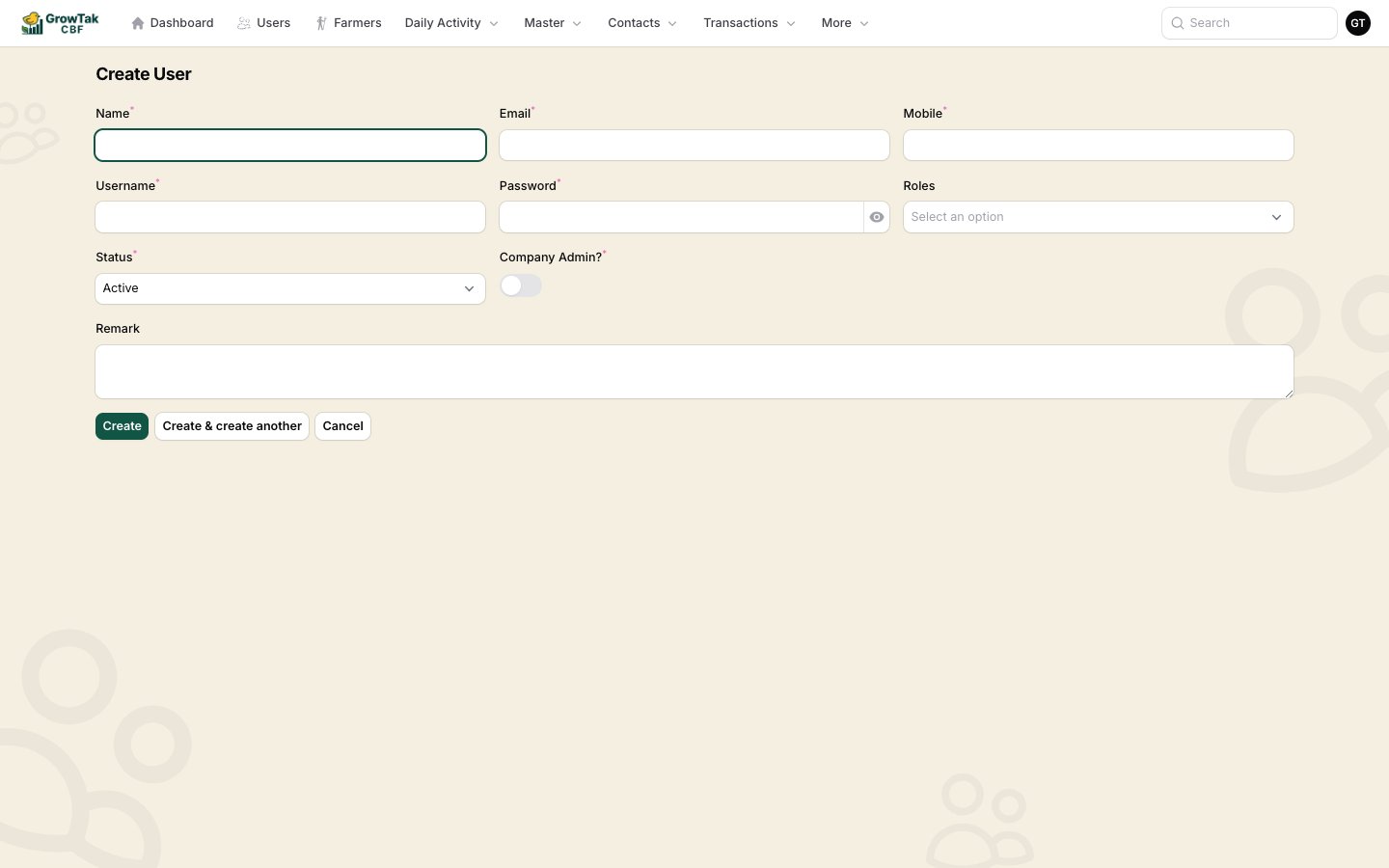 | Field | Notes |
| ----------------- | ------------------------------------------------------------------------------------ |
| **Name** | The person's full name. |
| **Email** | Required and unique within the company. |
| **Mobile** | Exactly 10 digits. |
| **Username** | Login name — 3–20 characters, letters/numbers/underscores. Often the mobile number. |
| **Password** | Required when creating. Leave blank when editing to keep the existing password. |
| **Roles** | One or more roles (e.g. *Supervisor*). |
| **Status** | *Active* or *Inactive*. An inactive user cannot sign in. |
| **Company admin** | Toggle to grant full company access (bypasses all permission checks). Use sparingly. |
| **Remark** | Optional notes. |
A **Company admin** can see and do everything in the company, including settings, payments, and closing batches. Give this only to owners/managers, not to field staff.
## The two default roles
Full access to every screen and **every batch** in the company.
Field-focused access: day entries, medications, the six transaction types, and lifting — but only for **batches assigned to them**, and active batches only.
## Assigning supervisors to batches
The Supervisor role's "assigned batches only" rule is what scopes a supervisor's view. A supervisor is linked to a batch on the **batch** itself:
Go to **Batches** and create or edit a batch. See [Creating a batch](/farmers-batches/creating-batches).
In the **Supervisors** field, choose one or more users. They can be changed at any time.
From now on, those supervisors see this batch (and can record entries for it); others with the Supervisor role do not.
A batch can have **more than one** supervisor, and a supervisor can be assigned to many batches.
## Roles & permissions (Shield)
Open **Roles** (under *More*) to view or edit roles and their permissions.
| Field | Notes |
| ----------------- | ------------------------------------------------------------------------------------ |
| **Name** | The person's full name. |
| **Email** | Required and unique within the company. |
| **Mobile** | Exactly 10 digits. |
| **Username** | Login name — 3–20 characters, letters/numbers/underscores. Often the mobile number. |
| **Password** | Required when creating. Leave blank when editing to keep the existing password. |
| **Roles** | One or more roles (e.g. *Supervisor*). |
| **Status** | *Active* or *Inactive*. An inactive user cannot sign in. |
| **Company admin** | Toggle to grant full company access (bypasses all permission checks). Use sparingly. |
| **Remark** | Optional notes. |
A **Company admin** can see and do everything in the company, including settings, payments, and closing batches. Give this only to owners/managers, not to field staff.
## The two default roles
Full access to every screen and **every batch** in the company.
Field-focused access: day entries, medications, the six transaction types, and lifting — but only for **batches assigned to them**, and active batches only.
## Assigning supervisors to batches
The Supervisor role's "assigned batches only" rule is what scopes a supervisor's view. A supervisor is linked to a batch on the **batch** itself:
Go to **Batches** and create or edit a batch. See [Creating a batch](/farmers-batches/creating-batches).
In the **Supervisors** field, choose one or more users. They can be changed at any time.
From now on, those supervisors see this batch (and can record entries for it); others with the Supervisor role do not.
A batch can have **more than one** supervisor, and a supervisor can be assigned to many batches.
## Roles & permissions (Shield)
Open **Roles** (under *More*) to view or edit roles and their permissions.
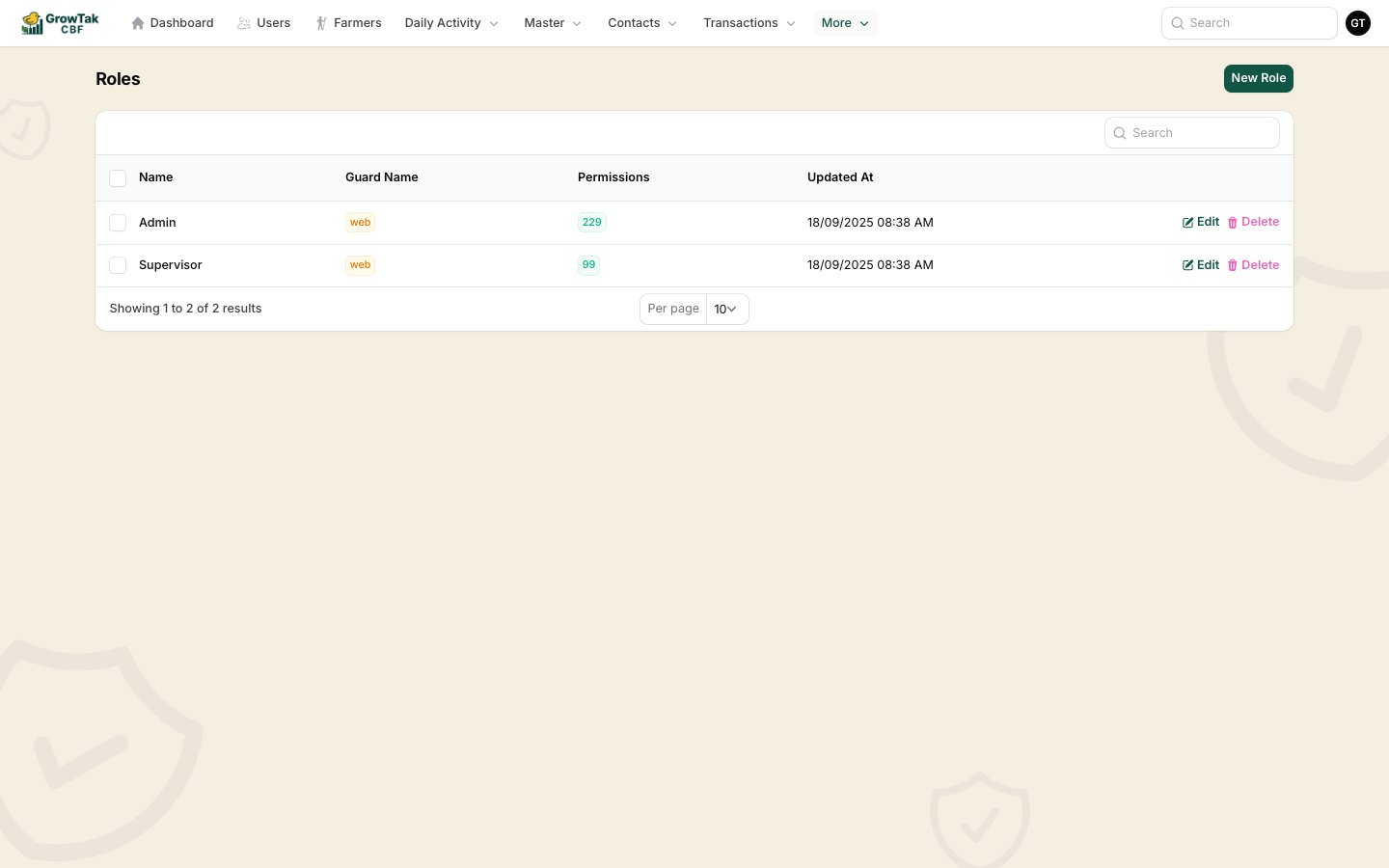 Permissions are fine-grained — each resource (batches, day entries, transactions, reports, etc.) has separate **view / create / edit / delete** permissions, plus a few special ones:
| Permission | Effect |
| ------------------------------ | ---------------------------------------------------------------------------------- |
| **Manage assigned only batch** | Limits the user to batches they're assigned to (the heart of the Supervisor role). |
| **See closed batch** | Allows viewing closed batches (otherwise only active ones appear). |
| **Journal & GC on batch** | Allows seeing the **Journal** and **GC Calculation** tabs on a batch. |
To create a custom role, select **New role**, name it, tick the permissions it should have, and save. Assign it to users from the Users screen.
Role changes are recorded in the **Activity Log** (under *More*), so you can see who changed whose access and when.
Permissions are fine-grained — each resource (batches, day entries, transactions, reports, etc.) has separate **view / create / edit / delete** permissions, plus a few special ones:
| Permission | Effect |
| ------------------------------ | ---------------------------------------------------------------------------------- |
| **Manage assigned only batch** | Limits the user to batches they're assigned to (the heart of the Supervisor role). |
| **See closed batch** | Allows viewing closed batches (otherwise only active ones appear). |
| **Journal & GC on batch** | Allows seeing the **Journal** and **GC Calculation** tabs on a batch. |
To create a custom role, select **New role**, name it, tick the permissions it should have, and save. Assign it to users from the Users screen.
Role changes are recorded in the **Activity Log** (under *More*), so you can see who changed whose access and when.