
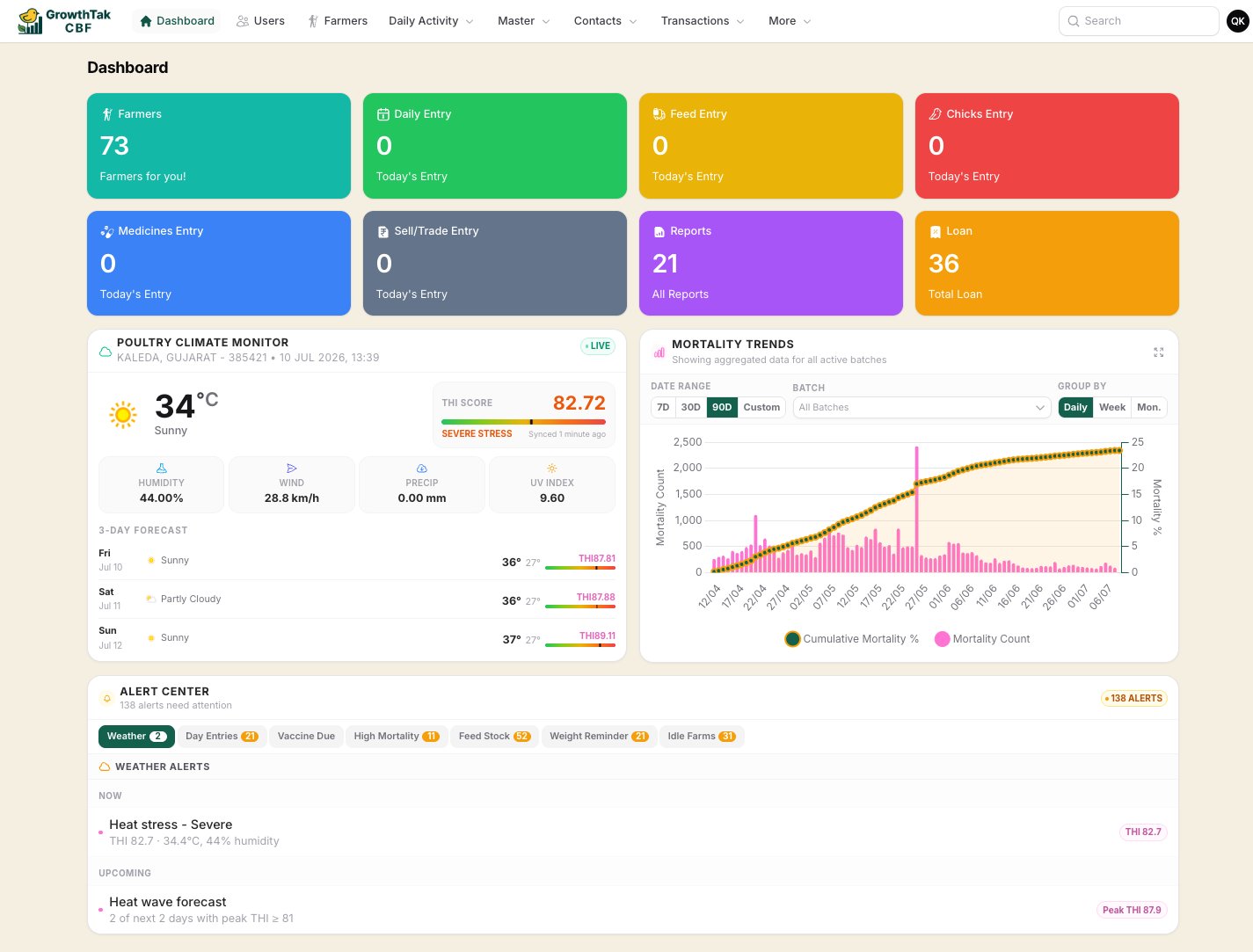
The GrowthTak CBF dashboard, with stat cards, mortality trends, and the Alert Center.
The navigation menu
The menu groups every screen into a few areas. The exact items depend on your permissions and how your admin has customised the menu.The dashboard at a glance
- Stat cards — quick counts: farmers, today’s daily/feed/chick/medicine/sale entries, total reports, and outstanding loans. Each card is a shortcut to that area.
- Poultry Climate Monitor — local weather, once you set your company’s latitude/longitude in Company Settings.
- Mortality Trends — aggregated mortality across active batches, with selectable date range (7/30/90 days or custom) and grouping (daily, weekly, monthly).
- Alert Center — tabs that surface batches needing attention: Weather, Day Entries, Vaccine Due, High Mortality, Feed Stock, Weight Reminder, and Idle Farms (admin only). Supervisors see alerts only for their assigned batches. The Feed Stock tab lists farms about to run out of feed — see Feed projection.
What changes with your role
GrowthTak CBF shows different things depending on who you are:Company admin
Sees every menu group and every batch. Can reach Company Settings, Users, Roles, and the Menu Builder, and can close/reopen batches and record payments.
Supervisor
Sees a focused menu for daily work. Day entries, medicines, transactions, and lifting are limited to assigned batches only. Closed batches are hidden unless permission is granted.
On mobile
Supervisors usually work from a phone in the field. On small screens GrowthTak CBF automatically:- Switches list screens from wide tables to stacked cards that are easy to read and tap.
- Shows field-friendly inputs such as the location button for GPS capture and the weight scale input for body-weight sampling.