

The Menu Builder is admin only. Find it under More → Menu Builder.
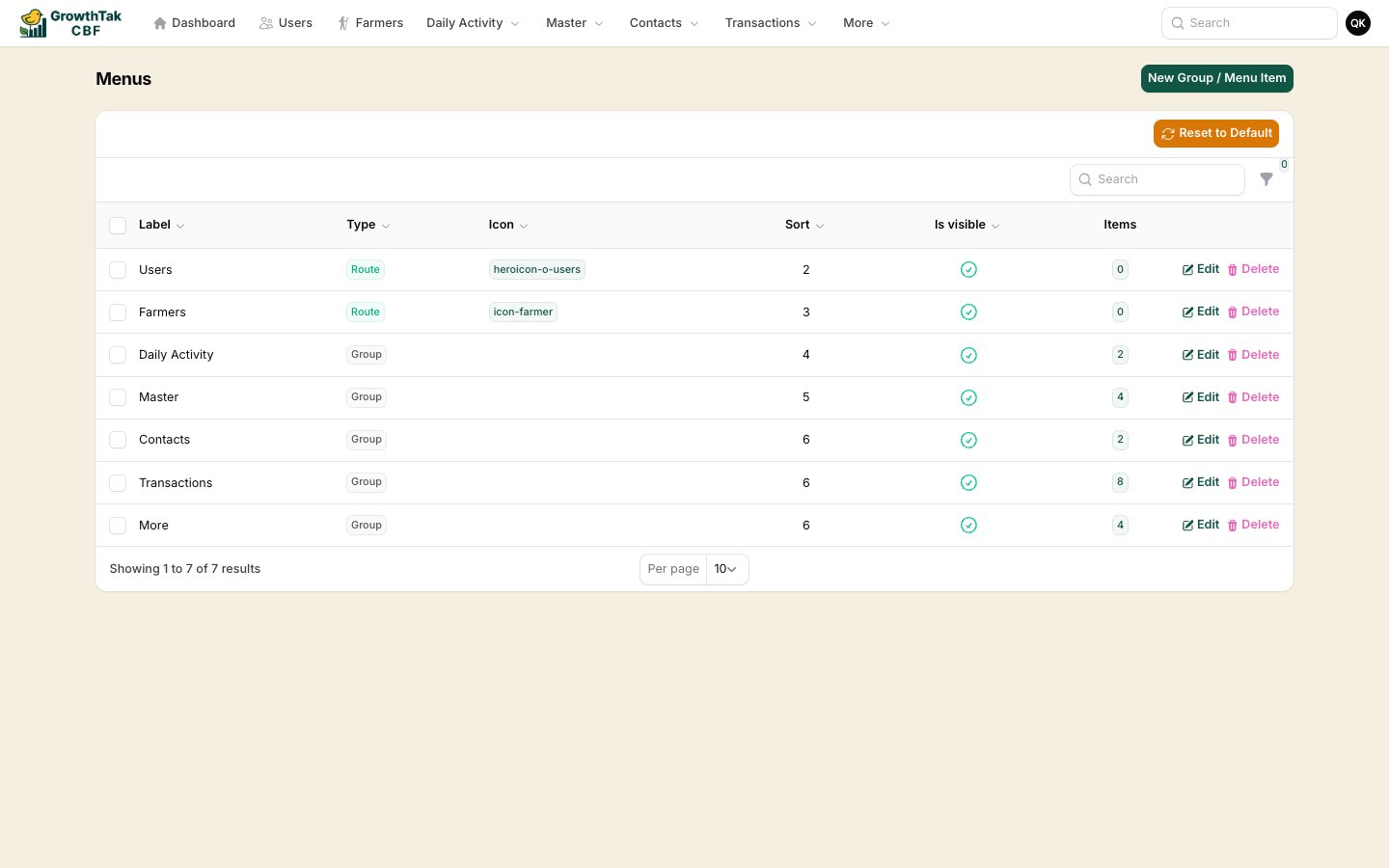
The Menu Builder lets you tailor the navigation menu to how your company works — rename groups, change the order, hide items you don’t use, and add your own shortcuts.
Menu builder
TypeUse it for
GroupA heading that holds child items (e.g. Daily Activity).
RouteA link to a screen inside GrowTak (e.g. Day Entries).
LinkA link to any external URL.

Editing the menu

Each item has:
  • Label — the text shown in the menu.
  • Icon — an optional icon name.
  • Sort — a number that sets the order (lower numbers first).
  • Visible — toggle to show or hide the item.
  • Open in new tab — for external links.
  • For a Group, a child-items table where you add the routes/links it contains (groups can’t be nested inside groups).
Permissions still apply. Even if a route is in the menu, a user who lacks permission for that screen won’t see it — so you can safely keep one menu for everyone.

Reset to default

Made a mess? The Reset to default button on the Menu Builder restores GrowTak’s standard menu for your company. You’ll be asked to confirm, because it replaces your current menu.
Resetting discards your customisations and rebuilds the default menu. Use it only when you want to start over.