

Managing users and roles is admin only.
Adding a user
Go to Users and select New user.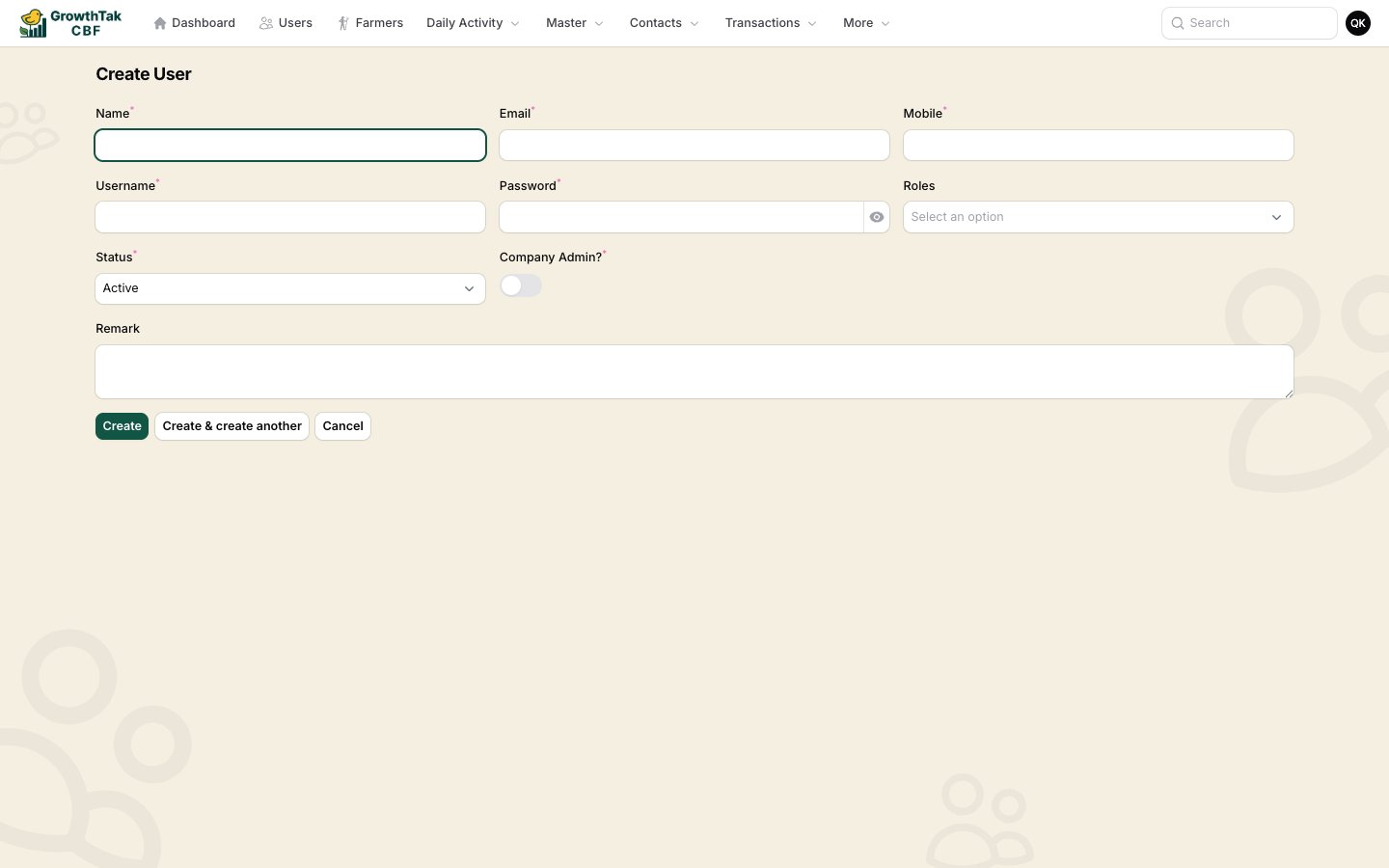
Creating a user.
The two default roles
Admin
Full access to every screen and every batch in the company.
Supervisor
Field-focused access: day entries, medications, the six transaction types, and lifting — but only for batches assigned to them, and active batches only.
Assigning supervisors to batches
The Supervisor role’s “assigned batches only” rule is what scopes a supervisor’s view. A supervisor is linked to a batch on the batch itself:1
Open or create a batch
Go to Batches and create or edit a batch. See Creating a batch.
2
Pick the Supervisors
In the Supervisors field, choose one or more users. They can be changed at any time.
3
Save
From now on, those supervisors see this batch (and can record entries for it); others with the Supervisor role do not.
Roles & permissions (Shield)
Open Roles (under More) to view or edit roles and their permissions.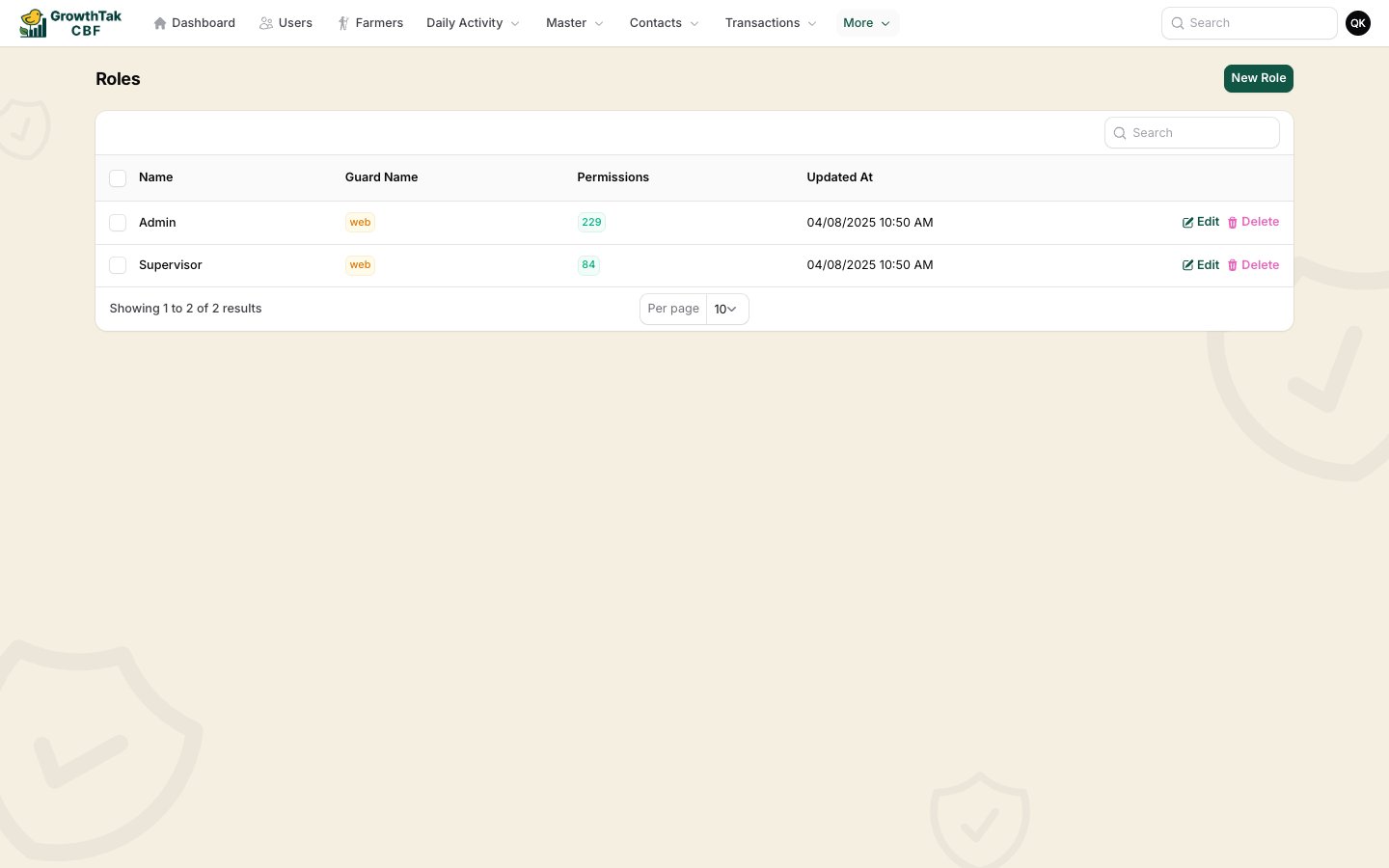
The Roles screen.
To create a custom role, select New role, name it, tick the permissions it should have, and save. Assign it to users from the Users screen.
Role changes are recorded in the Activity Log (under More), so you can see who changed whose access and when.