

Signing in
Open your company’s GrowthTak CBF address in a browser and you’ll land on the sign-in screen.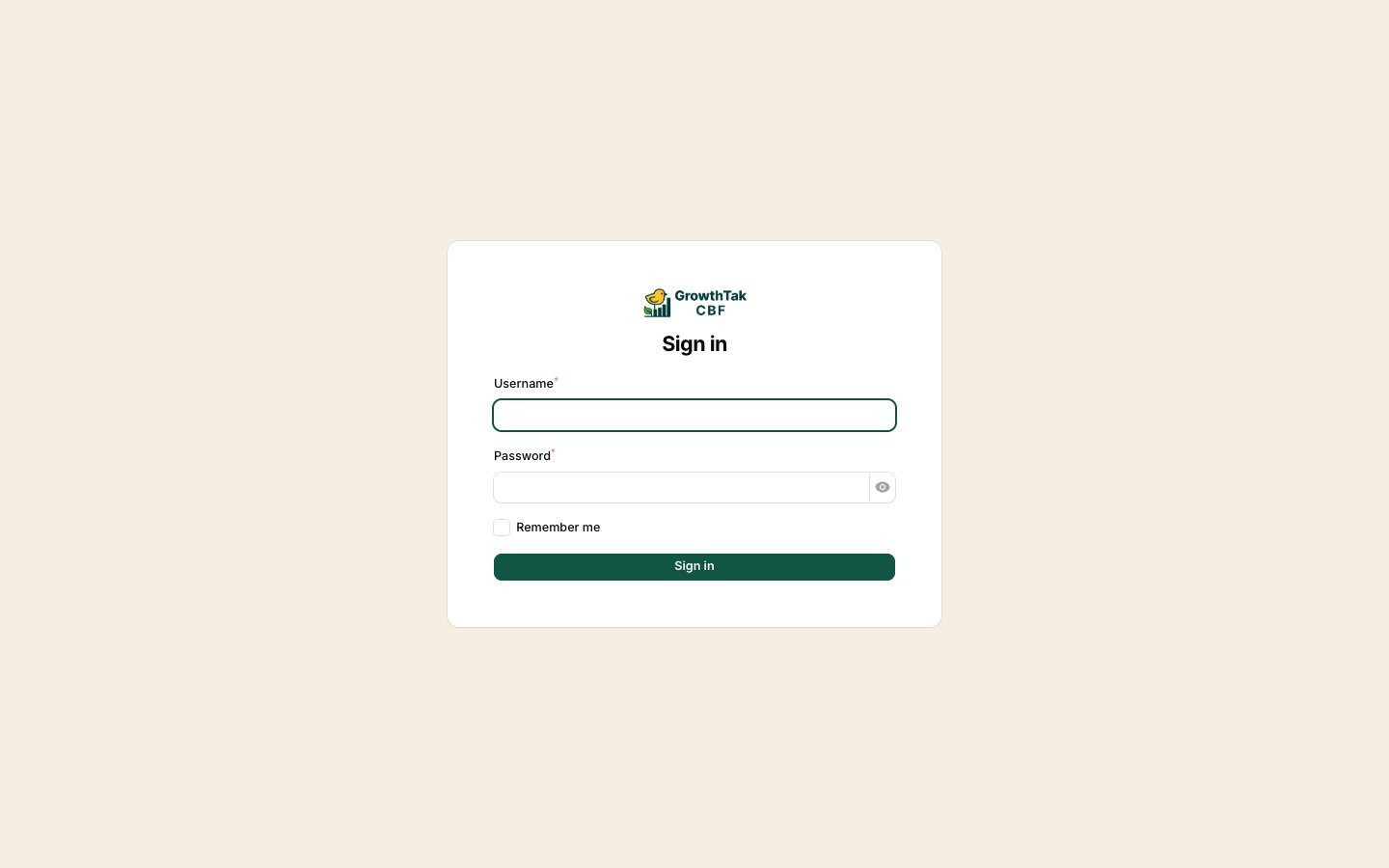
The GrowthTak CBF sign-in screen.
1
Enter your username
Your username is set by your admin when your account is created. It is often your mobile number, but it can be any short name.
2
Enter your password
Type your password. Use the eye icon to reveal it if you need to check what you typed.
3
(Optional) Stay signed in
Tick Remember me on your own device so you don’t have to log in every time.
4
Select Sign in
You’ll arrive at the Dashboard.
If you can’t sign in
GrowthTak CBF will block access (even with the correct password) when:- Your account is inactive — ask your admin to set your status back to Active.
- Your company is inactive or its subscription has expired — the admin needs to renew.
There is no public self-registration. New users are always created by a company admin under Users & roles.
Your profile
Open the user menu (your initials, top-right) and choose Profile to update your own details:- Name
- Username — 3–20 characters, letters, numbers, and underscores only
- Mobile — exactly 10 digits
- Password — set a new password here whenever you wish
First-time company setup admin only
A brand-new company is created for you by GrowthTak CBF. When it’s created, your company automatically comes with a sensible starting point so you can begin almost immediately:- An admin user (you) with full permissions.
- Default settings and menu.
- A starter bird profile, products (chick + feed grades), units, and a default batch program.
- Two roles: Admin and Supervisor.
1
Review Company Settings
Set your name, logo, contact details, and behaviour toggles. See Company settings.
2
Check your masters
Confirm your products, bird profile, and batch program match your breed and feeding plan.
3
Create a GC scheme
Define how farmers are paid. See GC schemes.
4
Add your team
Create supervisor accounts and assign them to batches. See Users & roles.